
Watch the webinar
If you missed the session or want to revisit any part of it, the full webinar recording is available on demand here: Watch the recording.
In this tutorial
In this tutorial, you will find the two example apps we walked through.
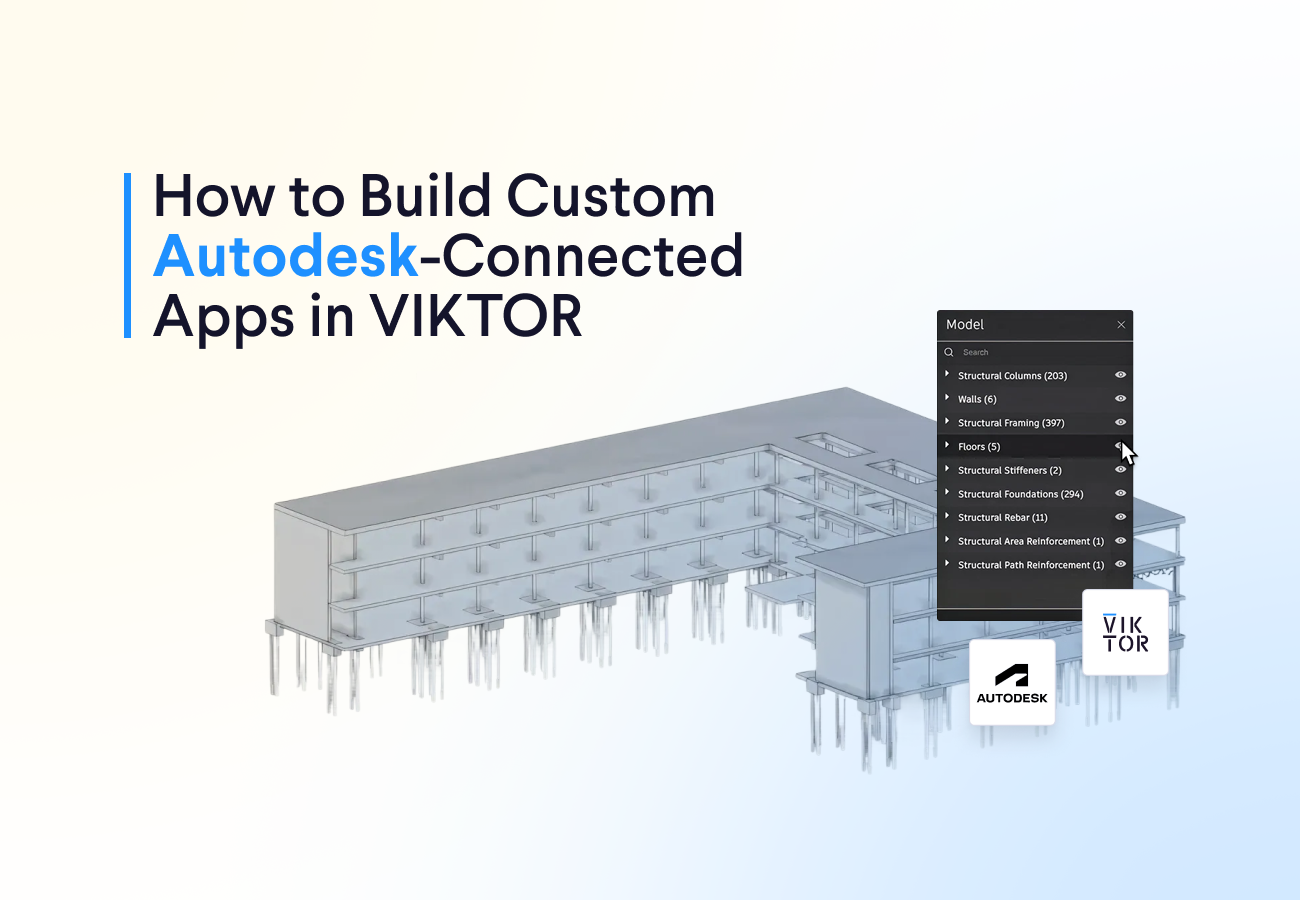
The first one is a lightweight Building Information Modeling IFC application you can build if you are a user of the free version. The second one shows how to pull Revit models directly from Autodesk Construction Cloud once you have your Autodesk integration configured.
Your first IFC application
Let's start with something simple, similar to what you saw in the webinar. This app will let you upload an IFC file, visualize it, calculate total lengths of structural elements, and analyze costs and emissions. No Autodesk Construction Cloud (ACC) connection is needed, so you can build this right away even if you're on the free tier.
If you are in the free tier of VIKTOR, you can still get the benefits of creating BIM apps in minutes.
You can download this model, store it on your computer and run the following prompts to create the app. Then you can use the model to test the application.
The following prompts will create an app that allows you to view IFC models, calculate element quantities, and generate cost and emission analysis.



Build this app
Now that you have the table and input data set up, let's visualize the results with some charts by using this next prompt:
1Display, in the same view, three pie charts: total length per IFC class in metres, total cost per IFC class in euros, and total emissions per IFC class in kilograms. The pie chart labels should show the total amount per IFC class with only a few decimal places. Make sure the pie charts are clearly readable, with titles and labels not overlappingYour first BIM app powered by ACC and APS
Before creating this application, you need to set up the Autodesk integration. We've summarized the instructions that were shared in the webinar for you to set up the integration and start building straight away.
Setting up the integration
The integration setup has two main steps:
- Create an APS application:
- Sign in to your APS account
- Navigate to the applications section
- Create a "Traditional Web App" application
- Use the "Client ID" and "Client Secret" to create an APS OAuth2 integration in VIKTOR by following the docs
- Register the APS application in ACC:
- Add the "Client ID" from your APS application in an ACC hub
- Activate the AEC Data Model API in your hub
- For more details and a step by step walkthrough, see the [documentation](https://docs.viktor.ai/docs/create-apps/software-integrations-autodesk-platform-services/
Test it yourself
Once your integration is ready, you can create your second app with the following prompt, just change "your-APS-integration-name" to your actual integration name:
Build an app with ACC
The App Builder will come up with a plan to build the application and will give you instructions to add the integration to the app. Basically, you need to go to the settings of the app and add your integration there. You can see the video below if you need help activating the integration in the app settings.
Wrapping up
And that's it! You were able to create 2 useful applications to work with.
If you want to give you and your company access to the ACC integration, feel free to book a demo here.
Start building apps for free
Related Blog Posts
September 11, 2026
Automate AutoCAD drawings with VIKTOR AI: 3 prompts for parametric structures and details
Read more
August 27, 2026
Automate QA/QC checks in ETABS with VIKTOR AI: Lessons from our structural engineering masterclass
Read moreAugust 19, 2026