
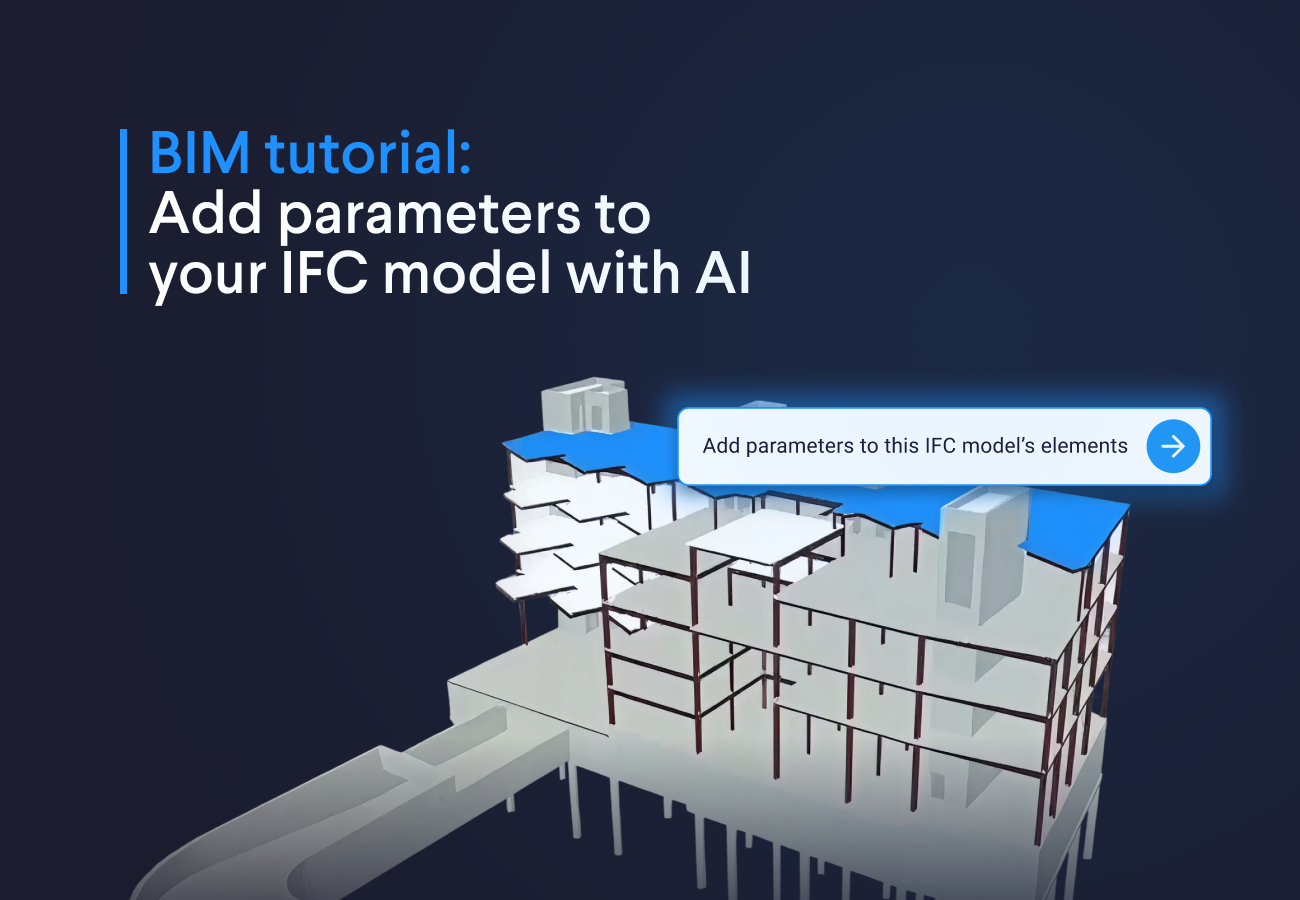
Prompt 1: Create an IFC viewer with an input table
The first step is to create a viewer for your IFC model and set up an input table where you can define which parameters to add to which element types. For this tutorial, we will add carbon emission factors to slabs, walls, columns, and beams.
To test the result of the prompt, download this model and save it on your computer, so you can upload it in your app later.
Below you can run the prompt to directly build this app:



Build this app!
Prompt 2: Add parameters to IFC elements and generate updated model
Now we'll use the input table to actually add the parameters to your IFC elements. The app will create property sets for each element class and show you the updated model.
1Now use the input table to create a dedicated property set on each element for its IFC class.
2
3Generate a new IFC view that showcases the updated model. When reading the IFC file, load it in binary and decode it to text before processing.
4
5Also, when using `ifcopenshell.api` for property sets, first create the pset with `add_pset` (which returns the pset object), then separately add properties to it using `edit_pset` with that pset object — do not pass properties directly to `add_pset`.
6
7Use `to_string()` instead of `write()` when exporting to avoid BytesIO error
A useful built-in feature of the IFC viewer is that you can simply click the download icon to get the updated IFC with the new properties, so there’s no need to create an extra download component.
Prompt 3: Create a dashboard to visualize carbon emissions by level
With the parameters now in place, let's create a visual dashboard that shows the carbon emissions for each building level. You'll be able to select different floors and see the breakdown by element type.
1Now, building on the previous step, use the updated model to create a dashboard in a single PlotlyView.
2
3First, filter the model by `IFCBUILDINGSTOREY`. For each level, create a pie chart showing the total carbon emissions for that level (multiplying the `EmissionFactor` by the `GrossVolume` of each element). Add a dropdown menu to the Plotly chart that allows you to select and display a single building storey at a time.
4
5IMPORTANT: Use exactly these IFC class names and capitalization: `IfcSlab`, `IfcColumn`, `IfcWall`, `IfcBeam`and Reuse these exact strings everywhere you refer to the IFC classes in the code (including calls to `by_type` and comparisons with `element.is_a()`).
How you can use the app builder to support you and your teams
The app you just built is a starting point. You can extend it with more prompts to add features that fit your workflow:
- Pick from predefined parameters: Add an OptionList to your input table with common properties. Try prompting: "Add an option list to the input table that contains fire rating, thermal resistance, and acoustic rating"
- Generate custom HTML reports: Use a WebView to present your model data in a formatted web page. Try prompting: "Generate a complete report in a WebView that summarizes the results"
- Create downloadable PDF reports: Use the Report feature for sharing results with stakeholders. Try prompting: "Generate a PDF with the main results of the app"
Conclusion
In just a few minutes we built a viewer, added custom parameters, and created a dashboard to visualize IFC models. You can modify these prompts to add different properties like fire ratings, construction phases, or cost data. The same approach works for other tasks too, whether you need to compare IFC versions, run clash detection, or split models by discipline. Instead of writing scripts from scratch each time, you can describe what you need and have a working tool ready to go.
Start building apps for free
Related Blog Posts
October 09, 2026
How to automate warehouse quantity takeoff in Trimble Connect with VIKTOR AI
Read more
October 02, 2026
Autodesk University 2026 recap: Automate Civil 3D and AutoCAD workflows with VIKTOR AI and MCP
Read more
September 14, 2026
Automate AutoCAD drawings with VIKTOR AI: 3 prompts for parametric structures and details
Read moreGet our best content in your inbox
Subscribe to our newsletter and get the latest industry insights