
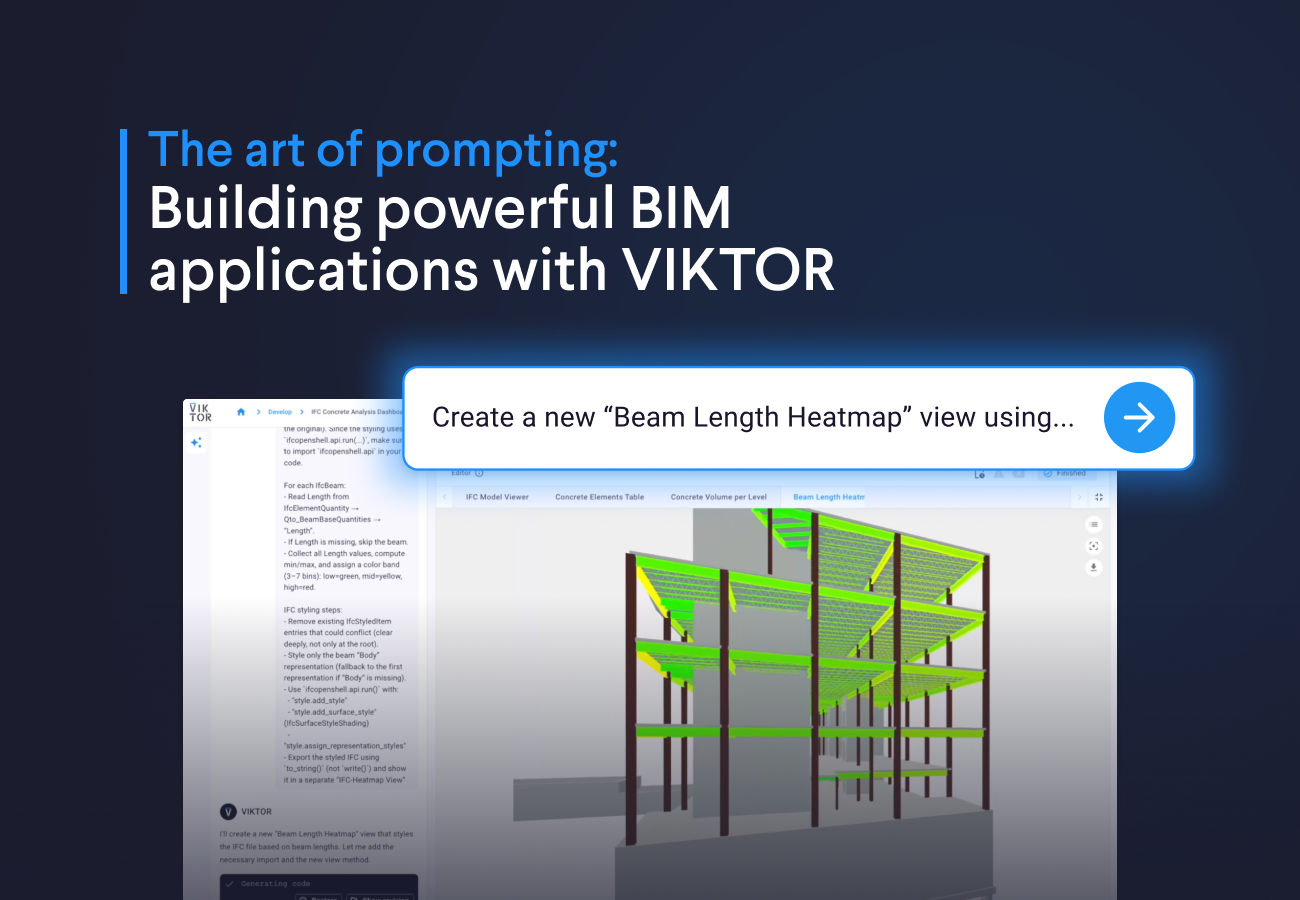
Crafting a good prompt is the cornerstone of getting good output, and writing good prompts is a skill that requires learning and practice. Today I want to share how I create my prompts to get the most out of the App Builder, specifically when creating BIM apps.
Since the best way of learning is by doing, in this tutorial we will create one IFC BIM app in the App Builder with two prompts, and for each one I'll explain how I crafted it so you can follow along. Here's what we'll build:
- Prompt 1: IFC Viewer with Concrete Analysis
- Prompt 2: Create a custom heat map visualization
Let's start!
Prompt 1: IFC Viewer with Concrete Analysis
We'll start by running this prompt that creates a viewer, generates a table based on a complex filter that gets only the elements that are concrete, and also a bar plot with the volume but filtering by each level, which is something that BIM developers and managers often do.



Build IFC Viewer
Tip 1: Use the right IFC terminology in the prompt
I built this prompt by using the buildingSMART IFC documentation like a map. Each time I needed a piece of information (level, volume, material), I searched for that idea in the docs and noted the IFC name that stores it.
For the level, the docs show that elements are placed into the building structure using a “contained in spatial structure” relationship, and the level object is IfcBuildingStorey. That is why the prompt says: “Get the containing IFCBUILDINGSTOREY.” (Docs: IfcBuildingStorey)
For volume and materials, I did the same thing: I searched the docs for where they live. Volumes are often provided as IfcQuantityVolume (usually called “NetVolume”) (Docs: IfcQuantityVolume). Materials are linked using IfcRelAssociatesMaterial (Docs: IfcRelAssociatesMaterial). Materials can be one simple material or a more detailed setup (like layers), so the prompt lists the common material types to handle.
Tip 2: Use VIKTOR terminology in the prompt
In the prompt, I use vkt.File.from_url(...) to load a sample IFC model, based on the Viktor IFC view docs: https://docs.viktor.ai/docs/create-apps/results-and-visualizations/threed-model/#ifcview
For the FileField (so users can upload their own IFC file), I also used the same Viktor IFC view page as a reference: https://docs.viktor.ai/docs/create-apps/results-and-visualizations/threed-model/#ifcview
For the header # IFC BIM Tutorial, I used Viktor’s Markdown support: https://docs.viktor.ai/docs/create-apps/layout-and-styling/style-text/#supported-markdown-syntax
Prompt 2: Create a custom heat map visualization
Let's now proceed with a more complex prompt that seems more advanced. We will create a custom visualizer that applies color-coded styling to beams based on their length directly within the IFC file.
Build heat map visualizer
Tip 3: make sure you understand IFCOpenShell
The app builder can create these BIM apps because it uses IfcOpenShell, a Python package that makes working with IFC files much easier. Even if the app builder is good with this library, complex prompts still need a bit of help so the output matches what we want.
In the prompt, when I add methods like "style.add_style", "style.add_surface_style", and "style.assign_representation_styles", it is to guide the app builder through the exact styling steps that IfcOpenShell expects. I took those method names from the IfcOpenShell style API documentation, then placed them in the prompt so the app builder follows a proven path instead of guessing.
What if I don't know IFCOpenShell?
The good news is that AI can also be used to research, and it's quite good at navigating through documentation of coding libraries. You can use this prompt in your AI provider of choice that has web search capabilities like ChatGPT, Claude, Copilot, Grok, or Gemini:
"I'm writing a prompt to color the beams in my IFC model using IfcOpenShell (ifcopenshell). I want to color them based on their length. Which IfcOpenShell methods are useful for this? Please search and list the main steps and the key methods I should use, in simple language."
Then you can send the improved version of your prompt to the App Builder.
Tips for complex apps
In addition to the BIM-specific techniques covered above, here are some general tips that apply to any type of app:
- Sometimes you will hit an error when generating complex apps and the app builder will seem to be "stuck", you can refer to this part of documentation to learn how to overcome this
- To provide even better context you can upload images, txt, pdf with more context along your prompt and this will increase the quality of the output of the app builder
- Keep in mind that there is a trade-off between the agent context (how long the conversation is) and the quality of the output. Sometimes it's better to start a new conversation with the App builder and pass the current code of the app in a txt and then proceed with the development
Conclusion
In this blog you were able to create an application that performs complex filters and, you learned that using the IFC standard is powerful to guide the model on finding the right property and using IFCOpenShell is also key to ensure the App builder delivers what you want.
The app builder has more capabilities that are worth exploring from structural analysis apps to GIS applications, check out this blog to see more examples in action!
Start building apps for free
Related Blog Posts
October 09, 2026
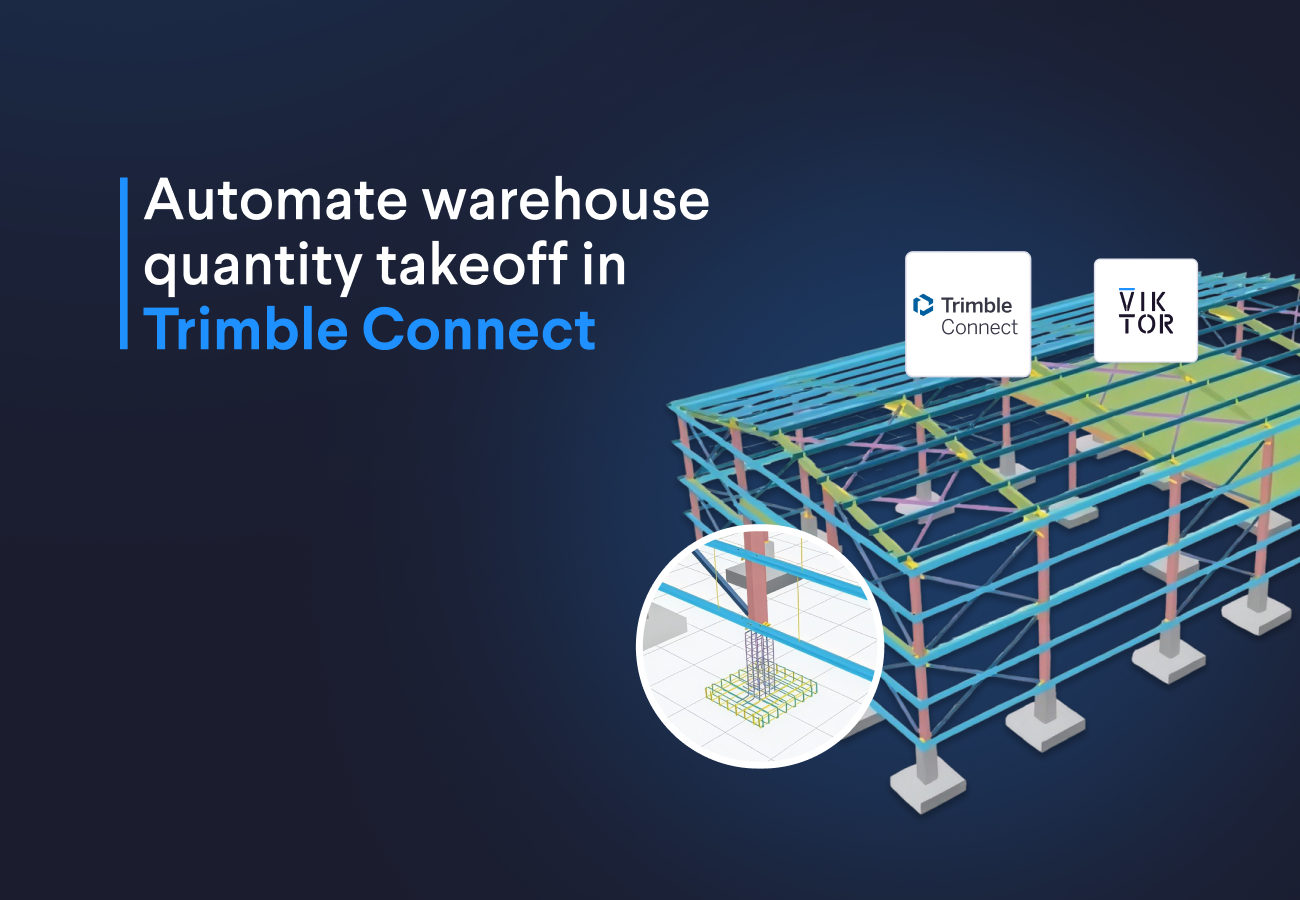
How to automate warehouse quantity takeoff in Trimble Connect with VIKTOR AI
Read more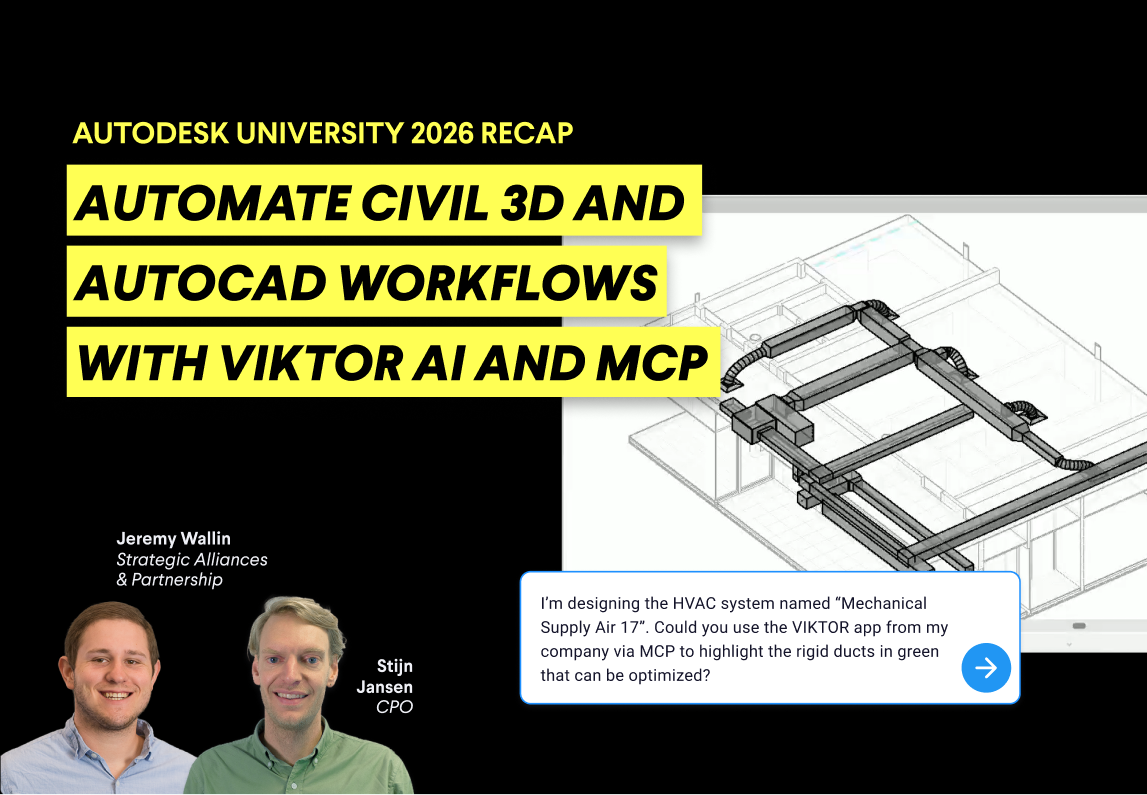
October 02, 2026
Autodesk University 2026 recap: Automate Civil 3D and AutoCAD workflows with VIKTOR AI and MCP
Read more
September 14, 2026