Start building apps for free
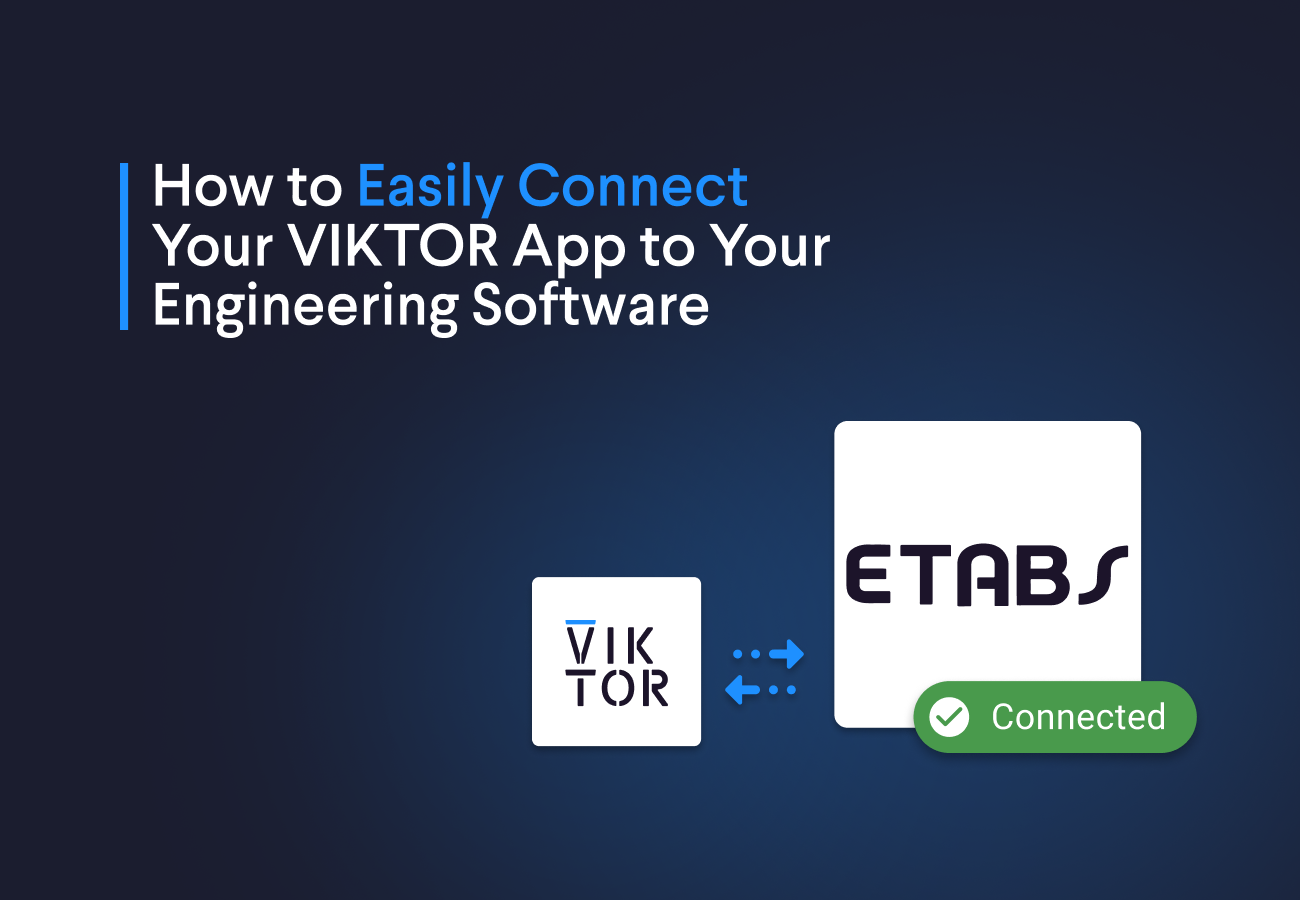
Since integrating external engineering tools is a key part of many automation workflows, the VIKTOR development team has recently made it a lot easier to make these integrations.
In this tutorial you will learn the key concepts on how to integrate your software, including a practical example with one of the most used software by VIKTOR developers: ETABS.
We will split this as follows:
- How to connect engineering software to web applications
- Step by step guide
- Step 1: Create VIKTOR app
- Step 2: Start your app and set up the integration
- Step 3: Run the worker
- Tips and troubleshooting
How to connect engineering software to web applications
The cornerstone of this integration is the VIKTOR worker. Although this name does not tell you much, you can think of it as a middle man between your VIKTOR web application and your engineering software running either on your computer or on a server.
In simple terms, it is just an executable that receives and executes jobs. You should install it on your computer or on your server. Then your web application can send jobs, the worker will execute them by connecting to your software, and then send the results back.
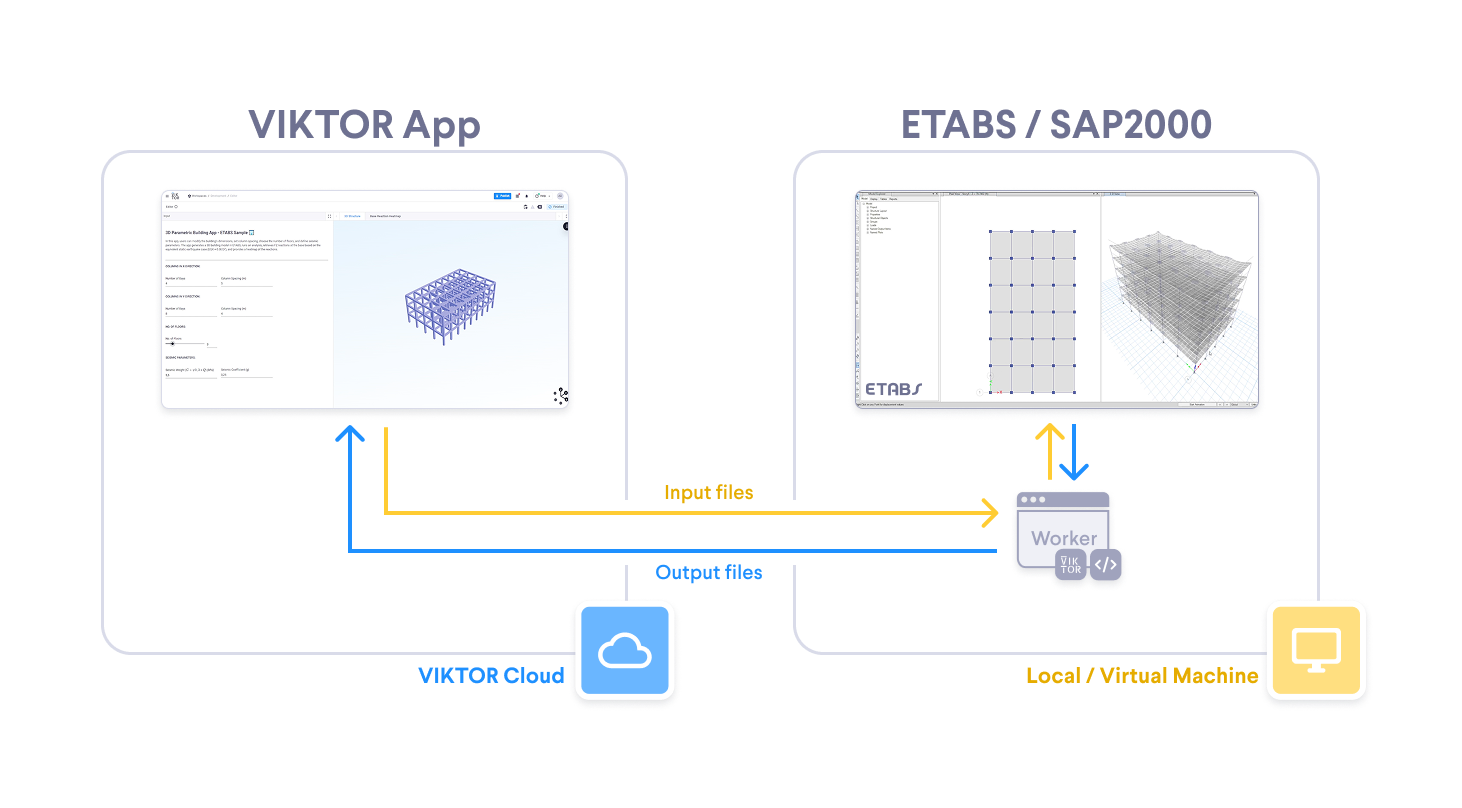
How the worker communicates with your engineering software
The answer to this is APIs. These APIs are basically a group of methods exposed by your engineering software to be used with Python.
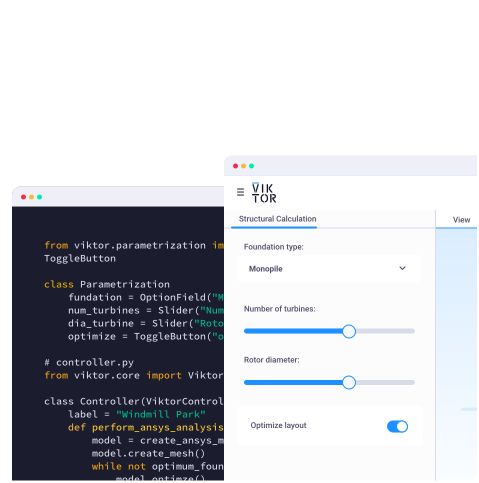
So in your VIKTOR application you define the logic, which is Python code that uses your software API, and the worker executes it. You can see an example here, and we will go deeper into how to set up the worker to execute that in the following sections.
How can I use this worker?
As we mentioned earlier, the worker is something you can install on your computer. VIKTOR also offers a list of out of the box integrations that you can check here
I will show you how to set up this integration in ETABS, but it is important to know that the process is the same for other software and that we support a wide range of integrations out of the box. You can see the full list here.
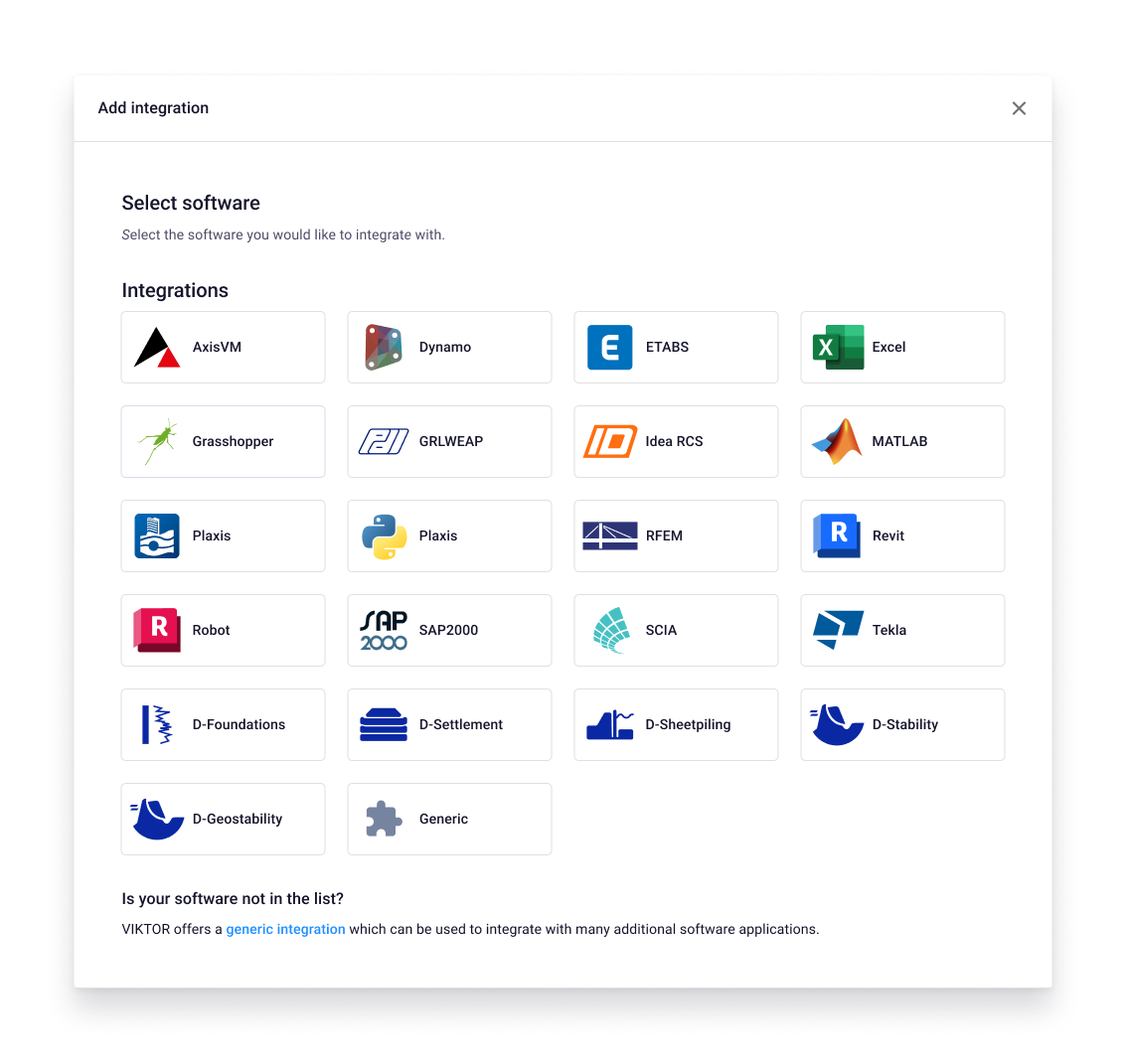
Step by step guide on integration
We will create a VIKTOR application that creates a 3D concrete frame in ETABS, runs the analysis with the structure self weight, and then creates a table with the reactions. All this will be powered by the worker.
1. Create VIKTOR app
The first step is to create a VIKTOR application. You can go to the app store, where you select ‘Create app'. You can name the app something like "etabs-worker-test" and in the “App type” select “simple”.
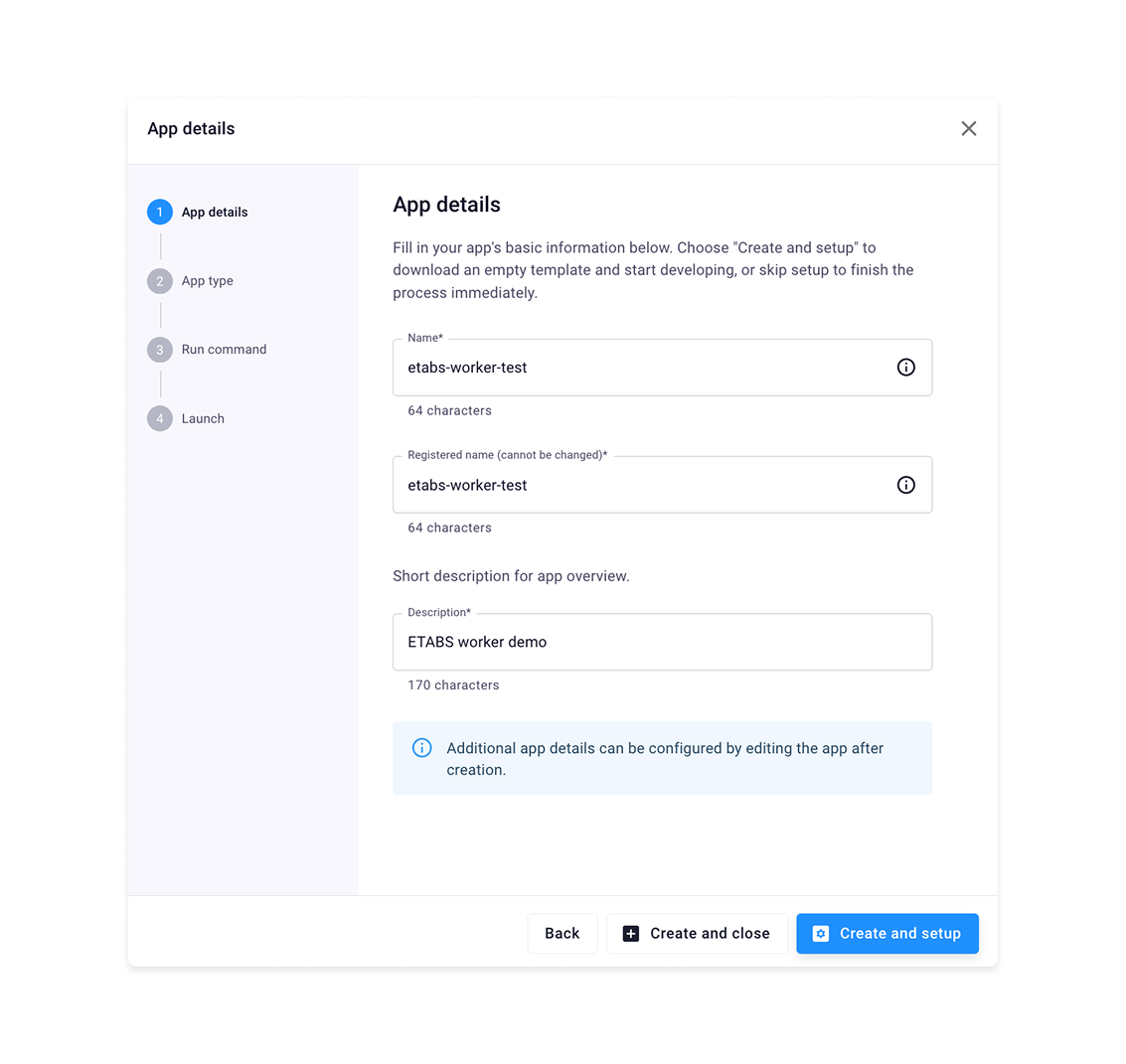
Then, after following the usual flow for creating the app, you can go to your development environment and create two files.
First, app.py. The content of this file can be copied and pasted from: app.py
Second, run_etabs_model.py. The content of this file can also be copied from: run_etabs_model.py
Make sure to update the ETABS installation path and version in this file to match your local setup.
Third, and most important, you should add the "etabs" integration to your viktor.config.toml file. You can use the example on GitHub as a reference. The key field to add is worker_integrations:
1
2app_type = 'simple'
3python_version = '3.12' # or your python version
4registered_name = 'etabs-worker-test'
5worker_integrations = [
6"etabs"
7]
8
If you are interested in trying other software, here is a list: If you are interested in using a different software, simply replace "etabs" with the corresponding name in the worker_integrations field. Here is the full list of supported integrations:
1
2"revit", "grlweap", "matlab", "dfoundations", "rfem", "idearcs", "etabs", "dsettlement", "sap2000", "robot", "plaxis", "dstability", "python", "tekla", "dgeostability", "axisvm", "generic", "grasshopper", "scia", "dynamo", "excel", "dsheetpiling"
3
2. Start your app and set up the integration
With all the files set up, you can start the application by running:
1viktor-cli install
2viktor-cli start
Once the app is running, you will see an "Offline integrations" notification indicating that a worker setup is required. Click "Connect integrations" to start the installation wizard. You can always check the videos at the end of this section for a visual walkthrough.
The wizard will guide you through the following steps:
- Start by selecting the integration your app requires. In our example, select ETABS and download the worker installer.
-
- During the installation, you will be prompted to input a connection key. This key also appears in your VIKTOR application, so you can simply copy and paste it.
- The installation wizard will then prompt you to input a Python environment path. This is the Python installation where the worker will run your code, it can be a system Python, a virtual environment, or a conda environment. You can find it by opening a terminal and typing:
1where python
Then copy the path and paste it into the installation wizard as shown in the following video.
- Install dependencies.
After finishing the installation, you need to install the Python packages required to control ETABS in the selected Python environment: Open a terminal and run the following command using the Python path you selected in the previous step:
1C:\Python312\python.exe -m pip install comtypes pywin32
3. Run the worker
Now everything should be ready. You can change the parameters in the parametrization and then go to the second view and click update to run the worker. If you find any error, you can check the next section.
Tips and troubleshooting
-
Depending on your installation, the worker executable should have the same permission as ETABS. If you run into any error, try to run the ETABS worker as administrator and retry.
-
Always make sure you install the dependencies in the right environment. You can identify your default Python executable, install the dependencies there, and use it in the worker flow.
-
Make sure you have the correct path and version of your software, that you have a proper license, and that no pop-ups appear when you launch the software because this can block the worker.
-
There are two types of worker: personal and organization. A personal worker runs on your own computer and is only available to you. An organization worker runs on a shared server and can be used by everyone in your team. If your company uses an organization worker and it is not available in your environment, you can contact your VIKTOR administrator to get access to it. To learn more about the difference between personal and organization workers, check the docs.
Conclusion
The VIKTOR worker makes it straightforward to integrate your engineering software into your VIKTOR web application. In this blog we covered the main steps to integrate ETABS with a VIKTOR web application using the worker, so you can learn how to apply the same approach to other tools. If you are interested in learning more, you can book a demo here.
Start building apps for free