
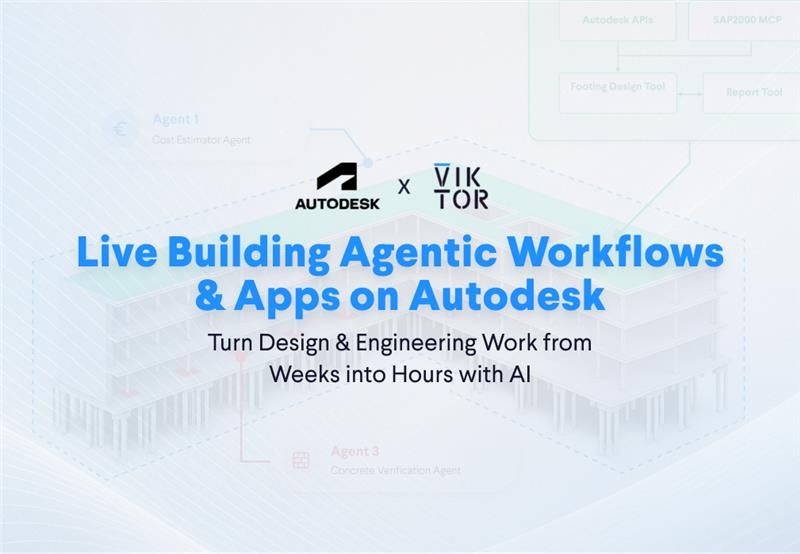
If you missed the session or want to revisit any part of it, the full webinar recording is available on demand here.
In this blog, you will:
-
Run a prompt to create your first agentic application
-
Create an agentic application that integrates with Autodesk Forma
-
Have a closer look at the Workflow Builder and the idea of an agentic workflow
Your first agentic application
Wouter started the presentation by walking through the challenges our industry is facing and why AEC is still behind other industries in adopting AI. He positioned AI as a catalyst to unlock value and as a practical way to help teams overcome these pressures.
As a practical example of how AI can help you build applications in minutes and unlock value for you and your team, you will create a complete app that integrates an AI agent to analyze a BIM model.
The application will include a BIM model viewer that loads a model automatically and a chat field where you can talk with an AI agent. In the next steps, you will see how this agent can help you get quantities from the model.
So click the blue arrow of the prompt box and run the following prompt:



Build this app now
Visualize and analyze a BIM model with built-in AI chat
After running the prompt you should now have a useful application that lets you talk to an LLM and get information from the model. You can try prompts like these:
- What materials are in the model and their total volumes?
- How many IFCColumns and IFCBeams?
If this is your first time using the App Builder, this is a good moment to read a bit more about how it works, the available features, and how to extend or troubleshoot your app.
Create an agentic application that integrates with Autodesk Forma (ACC)
After Wouter's introduction, Anthony talked about the Autodesk ecosystem and Autodesk Platform Services (APS), the set of APIs that power it. The key point was simple: these APIs help you connect data, automate actions, and build workflows around real projects.
Anthony also showed where VIKTOR fits in this ecosystem. With VIKTOR, you can:
- Build apps with AI on top of Autodesk data
- Create custom engineering calculations
- Create value for more users by making apps accessible
The first thing Anthony did was create an agentic application in App Builder, and you will be able to do it as well.
If this is your first time working with APS and VIKTOR, start with this guide first: Create BIM applications in minutes with AI and Autodesk Platform Services. In that blog, we show how to set up the integration and create your first Autodesk connected app by prompting.
After setting up the integration you can download the following model, upload it to your ACC and run the prompt below in App Builder.
Build this app now
Visualize a Revit model from ACC with built-in AI chat
Once the app is ready, you can ask questions to the LLM like:
- List all concrete walls in the model, including the total count
- List all structural framing elements
- What is the most used structural framing section?
- What is the total amount of structural framing in the model?
To extend the application, you can ask the App Builder to create another tool for the LLM inside the app.
Workflow Builder and agentic workflows
The previous application already creates value for you and your team. With VIKTOR, you can also connect apps into agentic workflows. In the webinar, Wouter showed a workflow agent with the following features:
- Connect to your ACC hub and let you select a Revit model
- Visualize the selected Revit model
- Use the Autodesk Automation API to extract the analytical model
- Create a SAP2000 model from the data extracted from Revit
- Connect and use a VIKTOR application in the workflow
- Calculate footing dimensions based on SAP2000 reaction loads
- Use the Autodesk Automation API to create foundation pads in the Revit model
- Push the updated model back to ACC
That demo only showed the beginning. With this type of workflow, you can, for example, analyze multiple design alternatives, test different soil conditions or loading cases, and then choose the most suitable design.
Conclusion
In this blog, you created two agentic applications that help you and your team analyze data from IFC and Revit models just by prompting. You also saw how VIKTOR connects with the Autodesk ecosystem and how AI can turn individual apps into larger workflows.
If you want to keep exploring what VIKTOR and App Builder can do, start now and join hundreds of engineers who are using AI to automate their engineering work.
Start building apps for free
Related Blog Posts
October 09, 2026
How to automate warehouse quantity takeoff in Trimble Connect with VIKTOR AI
Read more
October 02, 2026
Autodesk University 2026 recap: Automate Civil 3D and AutoCAD workflows with VIKTOR AI and MCP
Read more
September 14, 2026