
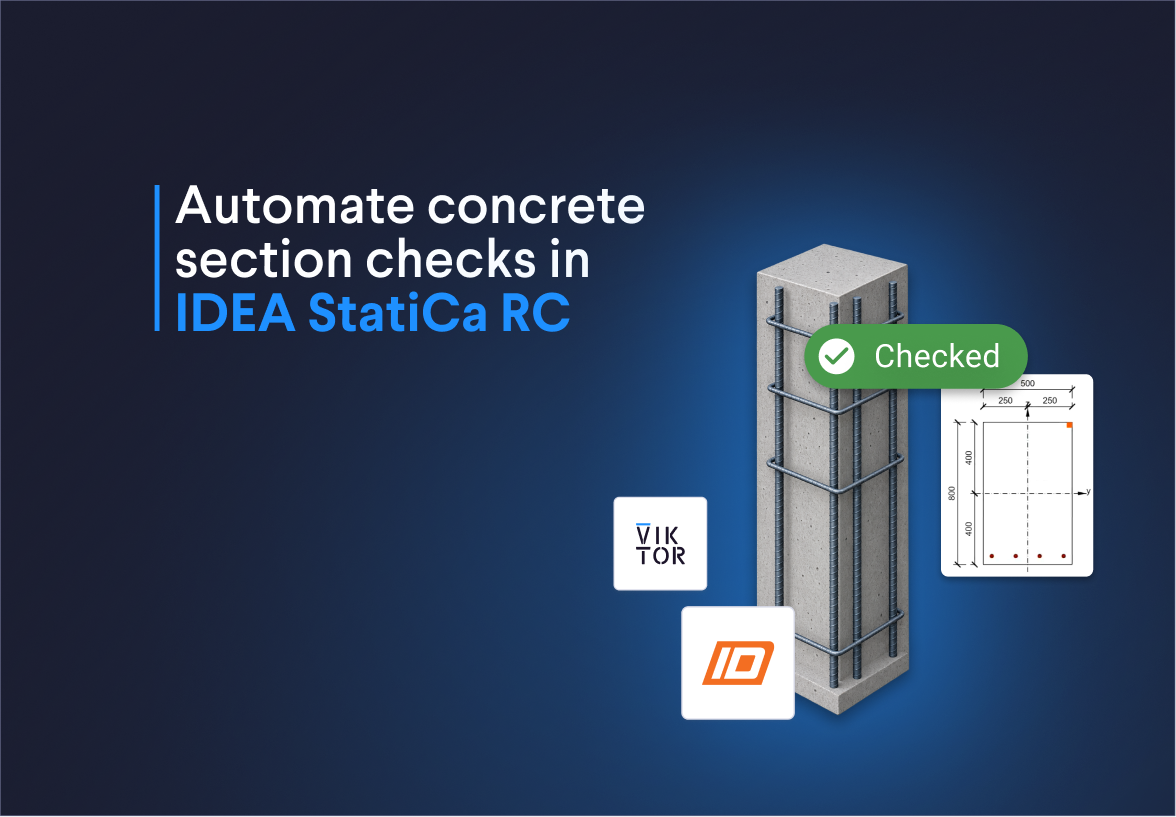
What is VIKTOR AI?
The VIKTOR AI platform gives you one place to automate engineering work, connect to the software you already use, and share apps with your team. You describe what you want to achieve, and VIKTOR AI turns your requirements into an app that performs calculations, processes project data, or generates reports.
The VIKTOR Knowledge Base helps your team keep the engineering knowledge behind these workflows available for future projects. Before sharing an app, your team can check it through development, testing, acceptance, and production (DTAP) stages, with VIKTOR Control managing governance and permissions. Once the app is ready, colleagues can find it in the Engineering Library and use it on another project by providing new project data. This lets your team build on existing knowledge and tested workflows, so you can spend more time reviewing results and making engineering decisions.
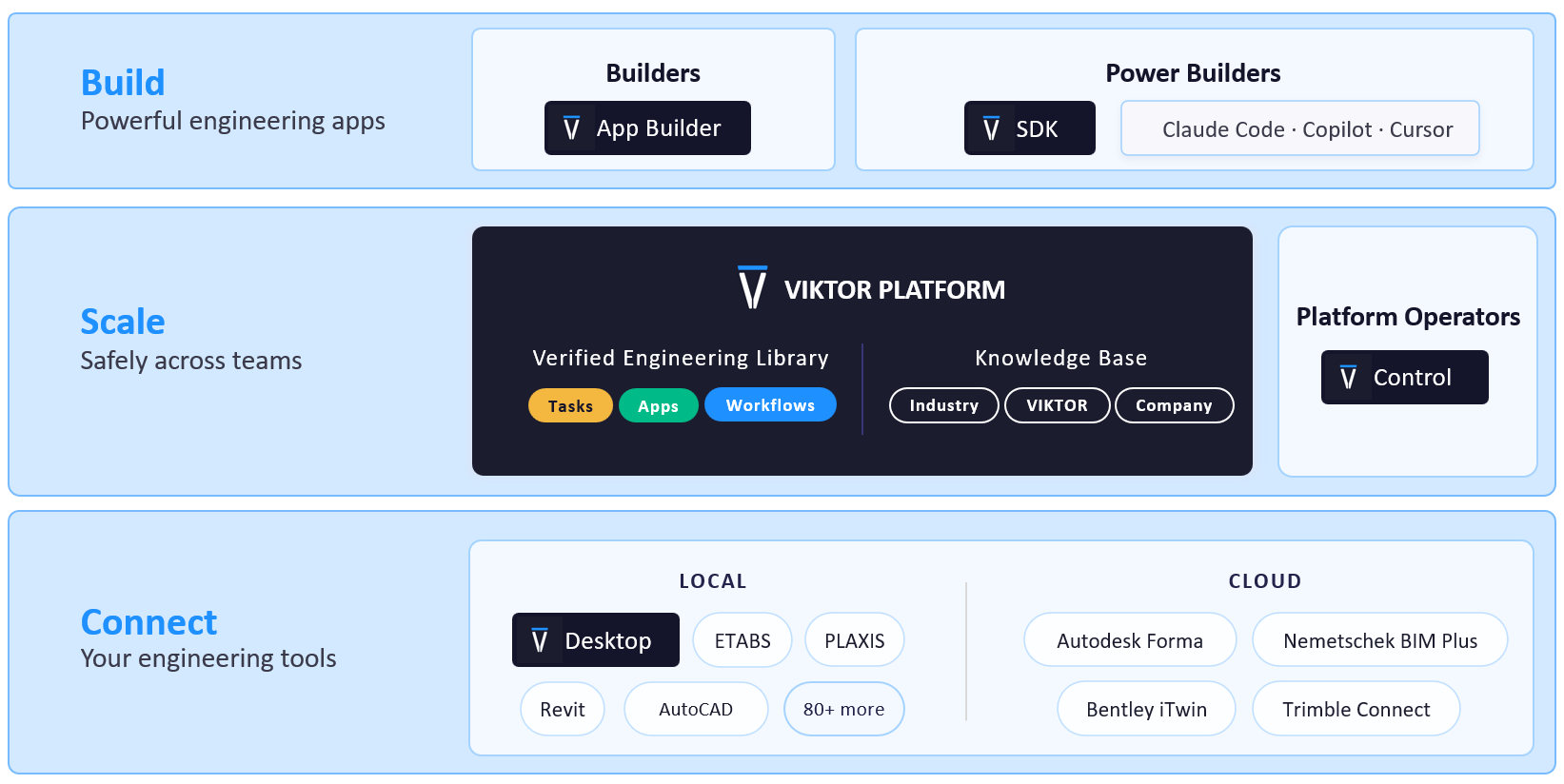
The three examples in this blog cover these concrete section checks:
- Rectangular beam checks: compare different dimensions and reinforcement layouts, run IDEA checks for each option, and download the native model for your chosen design.
- Circular column sensitivity analysis: see how changes to the section or bar diameter affect capacity, stress, and detailing checks.
- T-beam reinforcement optimization: find the smallest reinforcement area that meets the crack-width limits and review the other IDEA checks.
How do I check a rectangular beam in IDEA StatiCa RC with VIKTOR AI?
When I design a concrete beam, I need to compare different sizes and reinforcement layouts to find an option that works. Each time, I have to update the model, run the checks, and pull together the results to see how they compare. If the requirements change, I’m back to doing the same steps again.
With VIKTOR AI, you can create an app to compare beam designs in one place. Add different dimensions and reinforcement layouts, run the IDEA StatiCa RC checks for each option, and review the results together to see which designs meet your requirements. Instead of creating separate models or updating the same one over and over, you can spend more time exploring alternatives and choosing a design.
To get started, paste this prompt into the VIKTOR App Builder:



Create a rectangular beam with IDEA StatiCa RC
To run the checks in IDEA StatiCa RC, download and install VIKTOR Desktop, sign in, and add the IDEA StatiCa integration. Start the worker to connect the app to your licensed IDEA StatiCa installation on Windows.
Once you’ve tested the app, add a dashboard to make the results easier to compare. Use this follow-up prompt to bring the beam options and their checks together in a WebView:
1Extend the rectangular beam app with a dashboard in a VIKTOR WebView, using the existing design cases and IDEA results.
2Show a side-by-side table of each case’s dimensions, reinforcement, unity checks, and original statuses.
3Add charts comparing bending and shear unity checks and short-term and long-term crack widths, with the applicable limits clearly shown.
4Let me select a case to see its cross-section, detailed checks, and warnings, and download its native IDEA model.
5Keep failed checks visible and clearly distinguish missing results from passing checks.
6If inputs change, mark the affected results as out of date until the checks are rerun.
How do I run a sensitivity analysis for a circular column in IDEA StatiCa RC with VIKTOR AI?
When designing concrete columns, I want to understand how changes to their diameter or reinforcement affect performance. Comparing options manually in IDEA StatiCa RC means updating the model, rerunning checks, and recording each result. Under tight deadlines, this limits how many alternatives I can explore.
With VIKTOR AI, you can create an app that tests column or bar diameters and compares the results automatically. See how each change affects capacity, stress, and detailing, so you can understand the trade-offs and make design decisions faster.
Run a sensitivity analysis for a circular column with IDEA StatiCa RC
You can extend the app to generate a report for your team's design review:
1Extend the circular column sensitivity app with a downloadable Word report.
2Include the baseline inputs, selected input and tested values, result tables, sensitivity charts, and the cross-section of the selected case.
3Show units, unity checks, original statuses, failed checks, and warnings.
4Use the same IDEA results as the app and summarize how the tested changes affect the checks.
5Include the calculation assumptions and limitations.
6Do not publish.
How do I optimize T-beam reinforcement for crack width in IDEA StatiCa RC with VIKTOR AI?
A T-beam reinforcement layout can meet the crack-width limits and still use more steel than necessary. Finding a more efficient option means testing different layouts in IDEA StatiCa RC and comparing the results. This work can be difficult to fit into a project deadline.
With VIKTOR AI, you can create an app that finds the smallest reinforcement area that meets the crack-width limits among the options tested. Start the optimization, then review the selected layout and the other IDEA checks. This helps you identify opportunities to reduce steel use while spending less time on manual comparisons.
Optimize T-beam reinforcement for crack width in IDEA StatiCa RC
You can extend the optimization with cost and embodied carbon analysis:
1Extend the T-beam optimization app to compare material cost and embodied carbon per metre.
2Let me enter concrete prices per m³, steel prices per kg, and emission factors for concrete (kgCO₂e/m³) and steel (kgCO₂e/kg).
3Test web and flange alternatives with other inputs and search settings fixed.
4Calculate concrete volume and steel mass, including stirrups.
5Compare costs, emissions, and original IDEA statuses in a table and Plotly charts.
6Highlight the lowest-cost and lowest-carbon options that pass all requested checks.
7Keep invalid layouts, failed checks, and warnings visible.
8State if no option passes.
How can I understand and verify the generated apps?
When I want to check how an app calculates its results, I use chat mode. I switch from Build to Chat to discuss the calculation without changing the app.
For example, you can ask the App Builder: “Explain how this app creates the IDEA model and reads the results. What assumptions, units, and limits does it use?”
You can also invite colleagues to collaborate through the Invite button in the App Builder. As maintainers, they can review the code, conversation history, and app revisions, and help improve the approach.
To collect feedback from colleagues who will use the app, publish it privately and share the link within your company. Ask them to compare the calculations with a known reference case and check that the Word report uses the same inputs and results. This combines an understanding of the calculation method with a review of the report by your team.
This video shows how you can invite colleagues to test your app:
Conclusion
These three examples provide starting points for concrete section checks in IDEA StatiCa RC. Your team can compare rectangular beam designs, run a sensitivity analysis for circular columns, and optimize T-beam reinforcement for crack width. Each example connects editable inputs, cross-section views, and IDEA results, reducing manual work when the design changes.
You can then extend the apps with beam comparisons, Word reports of the sensitivity results, or cost and embodied carbon analysis. Try one of the examples above, or book a demo here to explore how VIKTOR AI can automate your team's concrete design workflows.
Start automating your workflows
Related Blog Posts
October 09, 2026
How to automate warehouse quantity takeoff in Trimble Connect with VIKTOR AI
Read more
October 02, 2026
Autodesk University 2026 recap: Automate Civil 3D and AutoCAD workflows with VIKTOR AI and MCP
Read more
September 14, 2026
Automate AutoCAD drawings with VIKTOR AI: 3 prompts for parametric structures and details
Read moreGet our best content in your inbox
Subscribe to our newsletter and get the latest industry insights