

You use Claude Code to build an app for SAP2000. You create an interactive 3D model of a cantilever retaining wall and connect it to SAP2000. When you run the analysis, the app brings back the deformed shape so you can check how the wall responds to the loads.
You’re proud of what you’ve built, so you show it to a colleague. He’s impressed and asks if he can try it on his next project. That’s when you run into a few problems.
-
Sharing. The app runs on your computer. There is no governed way to give it to colleagues.
-
Testing. Nobody has validated the app except you. Who cross-checks it before a colleague relies on it?
-
Version control. A copy goes out of date as soon as you improve the app. How does your colleague get the update?
-
Connecting to software. The app connects to the engineering software on your desktop. How does it connect to your colleagues?
-
Project storage. There is no shared place to keep each project’s inputs and results together.
What is VIKTOR AI?
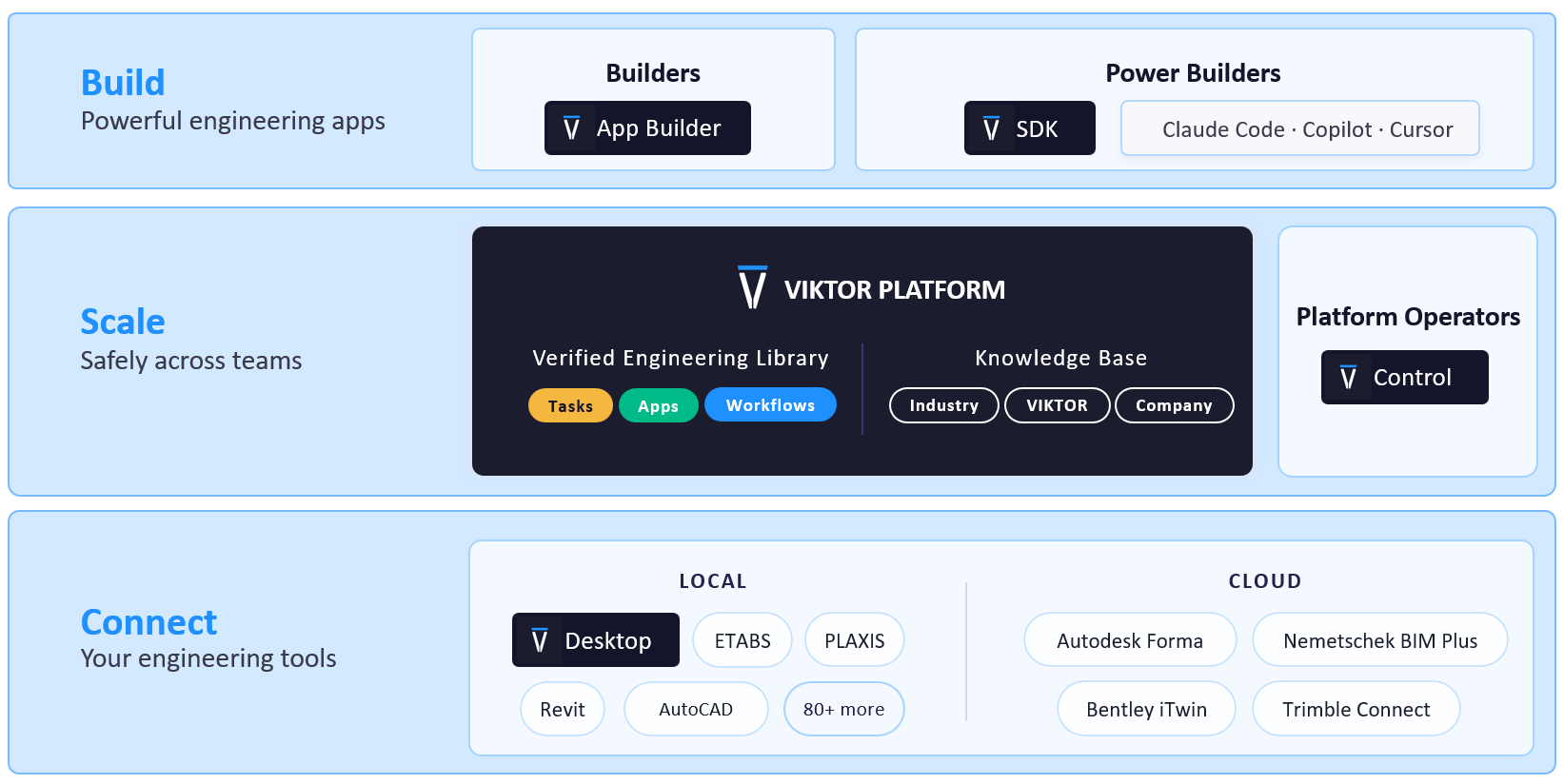
The VIKTOR platform helps you to automate your engineering projects. Everything starts with a project: a shared project space that holds the norms and standards, the scope and requirements, the engineering tools and the apps the work needs, shared with the colleagues invited to it. Each project draws on the information you already have, in the Knowledge Base, and on trusted apps from the Engineering Library. Each project also adds to both, so the team gets smarter with every project.
New apps come from the tool you prefer. Build with Claude Code, Copilot or Cursor, or with the VIKTOR App Builder, and publish to the platform. There the app is tested and validated, run safely in a sandbox and kept on the right version, and VIKTOR Control manages users, policies and security. VIKTOR Desktop and cloud connections link the app to your engineering software. That is how an app you built with Claude Code reaches your colleagues.
In this blog we cover how you can:
- Use VIKTOR Skills in Claude Code to adapt your existing SAP2000 app.
- Run the model from VIKTOR and check the results against SAP2000.
- Publish a tested version and share it with colleagues across projects.
How can you share your engineering app across your organization with Claude Code and VIKTOR?
Claude Code can use the VIKTOR software development kit (SDK) to adapt the wall app you already built, and publish it in the VIKTOR platform. Inthat way, your colleague can open the app in a browser. VIKTOR Desktop connects the app to SAP2000 on your colleague's desktop and returns the analysis results. VIKTOR hosts the app and handles project storage, so the next team can use the same workflow with its own data.
Let’s see it in action. You can use a project you already have open in Claude Code. To follow along with the SAP2000 example, clone the sample app and open its folder in Claude Code. Cantilever wall app on GitHub
With your project open, you’ll need two things to get started.
-
The VIKTOR Skills plugin for Claude Code. Installation guide
-
A VIKTOR account with developer access. Get started with VIKTOR
VIKTOR AI skills for Claude Code
You want Claude Code to adapt your existing wall app so it runs on the VIKTOR platform. To do that, Claude needs to know how VIKTOR handles the interactive 3D view and the connection to SAP2000.
A skill gives Claude instructions and examples for a specific task. The VIKTOR Skills plugin brings these skills together in Claude Code.
For your wall app, the skills guide Claude through creating a VIKTOR app from your existing code and starting it in your development workspace. Once you’ve checked the 3D view and the SAP2000 results, you can ask Claude to publish a version for your colleague to test. Other skills cover tasks such as generating calculation reports. Explore the VIKTOR Skills
Set up the VIKTOR development kit
The skills guide Claude’s decisions. The development kit gives it the tools to write and run the app. Open Local development in your VIKTOR personal settings and follow the setup for your computer. Once it is ready, you can work with Claude in the same repository and open the app in your VIKTOR development workspace. Development setup
For the analysis, you’ll also need VIKTOR Desktop on the Windows computer where you have a licensed copy of SAP2000. That connection lets you work in a browser while SAP2000 runs the model. SAP2000 integration
Let Claude Code connect to the VIKTOR platform
Open your existing wall app in Claude Code and ask Claude to adapt it for VIKTOR.
1
2Use the VIKTOR skill to turn this cantilever wall tool into a VIKTOR app.
3Keep the same interactive 3D view, the inputs on the right, the load arrows, and the colors that show how the wall moves.
4I’ll have an empty model open in SAP2000.
5Use VIKTOR’s secure SAP2000 integration to attach to it, build the wall with the same geometry, loads, and supports as the current app, and run the analysis.
6Add a short note in the app that explains what it does and how to use it.
7Create the app, install what it needs, start it, and send me a link to try it.
Claude uses the VIKTOR Skills to create the app, install its dependencies, and start it in your development workspace. Once the app is running, Claude opens its VIKTOR link in the browser pane inside Claude Code.
You can test the app right there. Enter the inputs for a wall case you know and check that you have the same inputs, interactive 3D model, and SAP2000 analysis you built into the local app. You’re now using that workflow through a VIKTOR link.
Test your VIKTOR app’s SAP2000 connection inside Claude Code
With the app open inside Claude Code, start the built-in SAP2000 integration in VIKTOR Desktop on the Windows computer where SAP2000 is licensed. Open a blank model in SAP2000, then enter your wall inputs in the app and select Apply inputs followed by Run in SAP2000.
VIKTOR Desktop connects the browser app securely to SAP2000. SAP2000 runs the analysis, and the deformed shape and displacement appear in the same 3D view. Check the result against the same load case in SAP2000. Once you publish the app, your colleague can open the link in a browser and use the configured integration without installing Python or the app’s dependencies. SAP2000 integration guide
Scale your engineering apps with Claude Code and VIKTOR
Now you can answer your colleague’s request. Ask Claude to publish the app, open the test version in VIKTOR, and invite your colleague to try it. A wall from a previous project makes a good first test because your colleague already knows what result to expect. Use that feedback to decide which version is ready for project work.
In VIKTOR, you can see which version is in Testing and which is in Production. Other teams can find the released app in the Engineering Library and add it to their projects. They use the same calculation, while each project keeps its own inputs, results, and permissions. When you improve the app, you can test the update before releasing it to those teams. Apps and projects
As more teams use the app, administrators can see which apps people use, manage access through company sign-in and project permissions, and store credentials as secrets. Activity dashboard · Access management · Secret variables
Conclusion
You built a retaining wall app with Claude Code and connected it to SAP2000. Now, when a colleague asks to try it, you can send a VIKTOR link. Each project team can use the same tested version and keep its own wall designs and results together.
To try the workflow yourself, create a free VIKTOR account. To explore how your team could use its own SAP2000 workflows across projects, book a demo.
Let us show you how VIKTOR
can help you solve any challenge
Related Blog Posts

Get our best content in your inbox
Subscribe to our newsletter and get the latest industry insights