
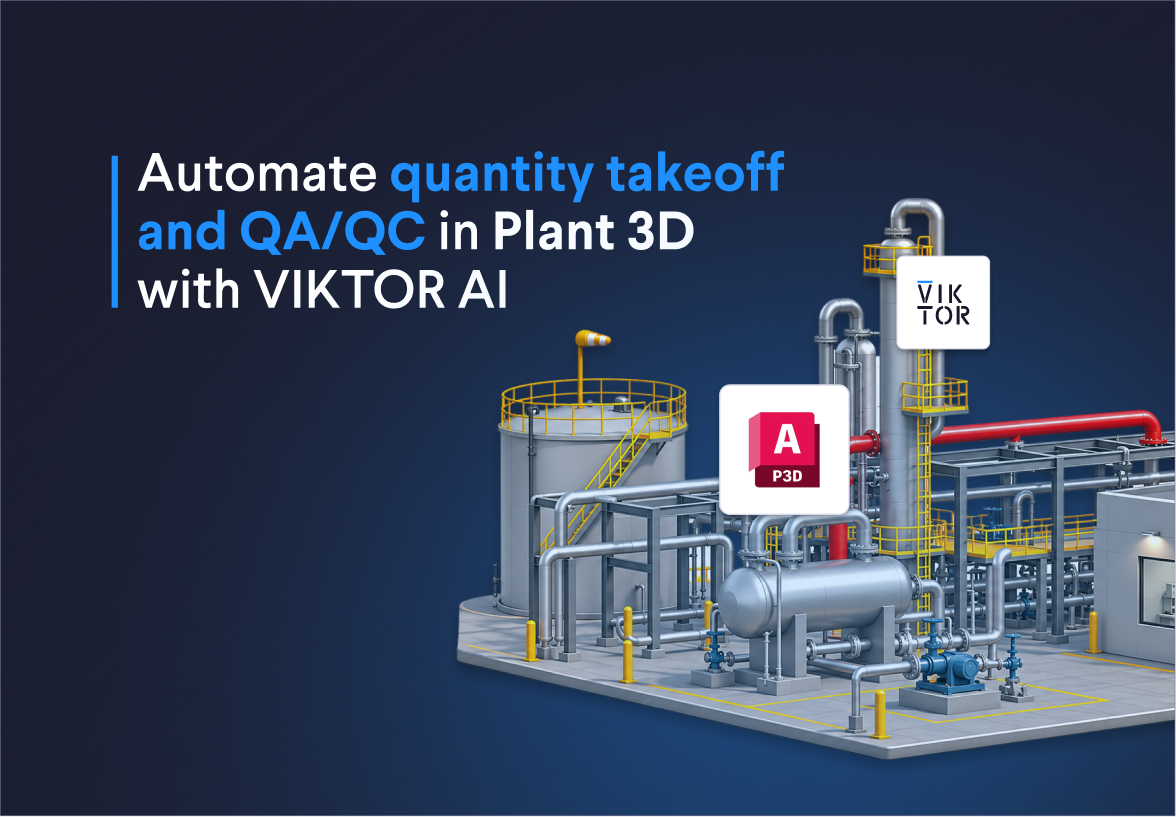
What is VIKTOR AI?
The VIKTOR AI platform gives you one place to automate engineering work, connect to the software you already use, and share apps with your team. You describe what you want to achieve, and VIKTOR AI turns your requirements into an app that performs calculations, processes project data, or generates reports.
The VIKTOR Knowledge Base helps your team keep the engineering knowledge behind these workflows available for future projects. Before sharing an app, your team can check it through the different stages of development, testing, acceptance, and production (DTAP), with VIKTOR Control managing governance and permissions. Once the app is ready, colleagues can find it in the Engineering Library and use it on another project by providing new project data. This lets your team build on existing knowledge and tested workflows, so you can spend more time reviewing results and making engineering decisions.
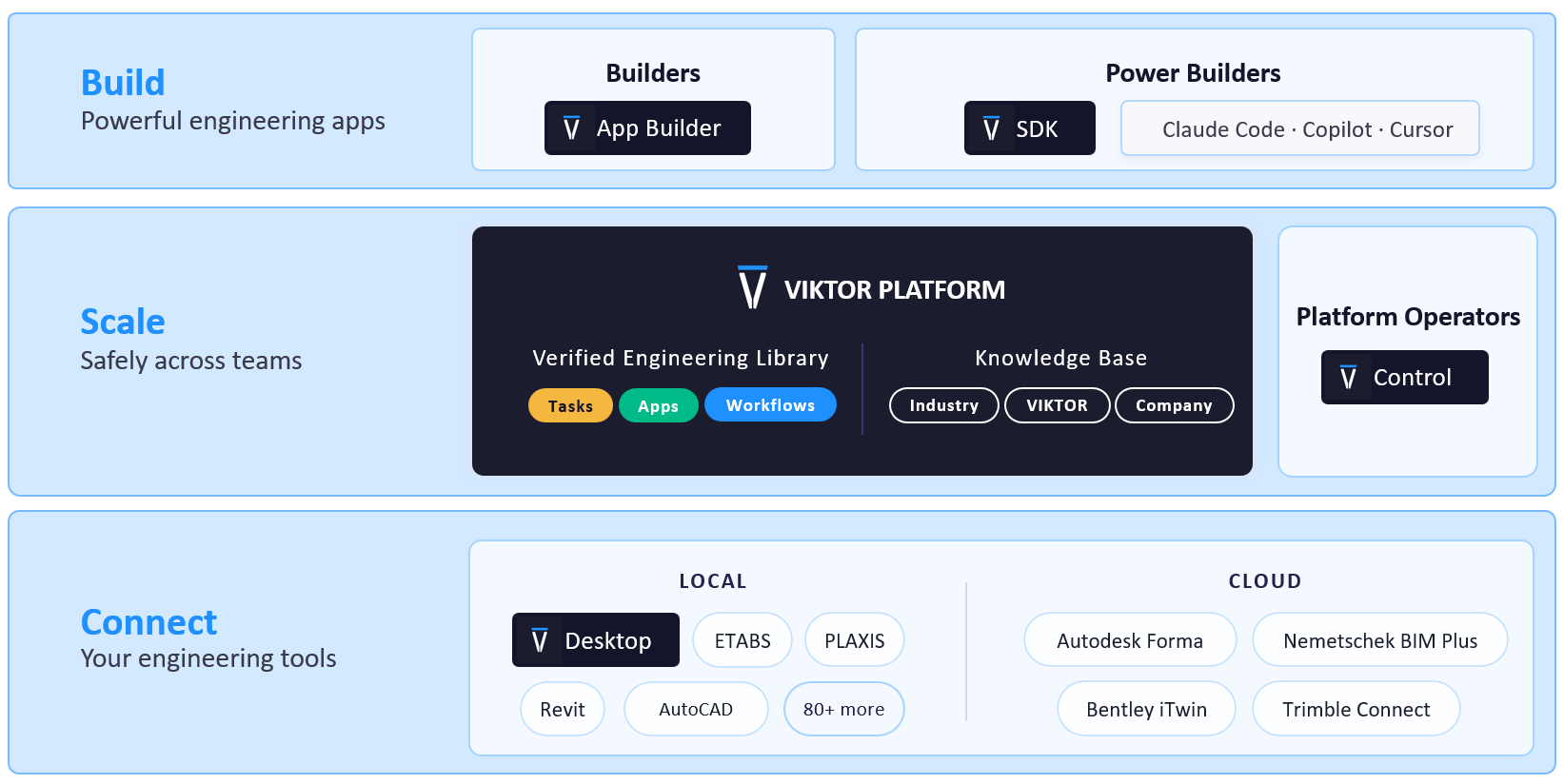
The examples in this blog cover the following three Plant 3D workflows.
- P&ID equipment takeoff: Count equipment by class across the published data set and review the records behind each count.
- 3D valve overview: Count valves by body type and use matching colors to find them in the selected drawing.
- Pipe tag QA/QC: Find pipes with missing line number tags and mark them in red in the model and table.
How do I set up my OAuth integration for Plant 3D in Forma or ACC?
To use your Plant 3D project data in VIKTOR, connect the app to Autodesk Construction Cloud (ACC) through Autodesk Platform Services (APS). When you open the app, sign in with your Autodesk account. This authorizes the connection through OAuth 2.0 so the app can read the drawings and published Plant 3D data that your account can access.
Follow these three steps.
- Create the APS application and VIKTOR integration. Create the application in APS. Ask a VIKTOR administrator to configure its OAuth 2.0 integration in the Administrator panel. Create the APS application and VIKTOR integration
- Register the same APS client ID in ACC. Ask an ACC account administrator to add it as a custom integration for the account that hosts your Plant 3D project. Add the APS client ID to the ACC account
- Check that the Plant 3D data is published. Open the project files and look for the P&ID Data Set and the 3D Piping Data Set. If you need to publish the project, follow the Plant 3D publication steps. Query AutoCAD Plant 3D project data
Working with an existing project? The AEC Data Model may need a new publication before it processes the project. If you cannot find the data sets, publish the Plant project again or publish an updated version. When processing finishes, look for the data sets in the project files. Autodesk publication details
Before you submit a prompt, replace [YOUR-APS-INTEGRATION-NAME-HERE] with the exact integration name from the Administrator panel. In the App Builder, select the connection in App details, save, and sign in to Autodesk when asked. VIKTOR Plant 3D tutorial
How do I create an equipment quantity takeoff for a Plant 3D P&ID project with VIKTOR AI?
Mechanical teams need equipment quantities to prepare estimates and plan what to order. In a large Plant 3D model, counting pumps, vessels, and other equipment by hand takes time. Each time the model changes, the team has to update the list and check the totals again.
With VIKTOR AI, you can create an app that prepares the takeoff from published Plant 3D data. Use the table to see which items make up each total before you use the quantities in an estimate. When a new revision is ready, run the same takeoff again to get updated quantities faster when you revise the budget.
Use the following prompt box to create the app in the VIKTOR App Builder.


Equipment takeoff for a Plant 3D P&ID project
You can extend the takeoff with separate counts for instruments and valves. Use their published classes and keep each category separate so the team can review its quantities by type.
1Extend the equipment takeoff app to include instruments and valves from the selected P&ID Data Set. Use their published Plant 3D classes and count each item once. Show separate totals by type for equipment, instruments, and valves. Include the records behind each total so I can check the quantities.
How do I create a valve quantity takeoff from a Plant 3D drawing with VIKTOR AI?
To prepare a budget, your team needs to know how many valves of each type the project requires. In a large Plant 3D model, finding and counting valves one by one takes time, and you can miss some. When the design changes, your team needs to update the quantities for the estimate.
With VIKTOR AI, you can create an app that groups valves by body type and shows the quantities for the selected drawing in a chart. The same colors highlight each group in the 3D viewer, so you can check where the valves are before using the quantities in your estimate. When a new revision is ready, run the takeoff again to update your budget.
Use the following prompt box to create the app in the VIKTOR App Builder
3D valve overview from a Plant 3D drawing
You can extend the app to group valve counts by both body type and Spec. This gives your team a breakdown by piping specification for the same drawing.
How do I perform QA/QC on my Plant 3D model with VIKTOR AI?
Checking the metadata in a Plant 3D model can take hours. Whether you are looking for missing tags or checking pipe properties, you may need to select components one by one and inspect their data. In a large model, finding the item that needs attention can feel like looking for a needle in a haystack.
With VIKTOR AI, you can create an app that checks whether each pipe meets a project data requirement. Here, the rule requires a Line Number Tag. The first view shows the affected pipes in red. The best part? You can create this app in about five minutes and use it to save hours of manual checking.
Perform QA/QC on a Plant 3D model
You can also extend the app to check another property, such as insulation, and highlight pipes with a missing value.
How can I understand and verify the generated apps?
When I want to check how an app calculates its results, I switch from Build to Chat in the App Builder. I use Chat to discuss the calculation without changing the app. Chat mode
For example, you can ask the App Builder, “Which Plant 3D data set and drawing does this app use? How does it count equipment or valves? What makes a pipe fail the tag check, and how does the app find that pipe in the viewer?”
Use a known drawing or data set to check the results. Compare the equipment counts with a source equipment list for the same P&ID data set. For valves, check that the table and chart totals agree for the selected DWG, then match a sample of the colored valves to their rows.
You can also use Invite to add colleagues as maintainers. They can review the code, conversation history, and app revisions. To collect feedback from colleagues who will use the app, publish it privately and share the link within your company. Ask them to run the same checks with a project they know and compare the results with their source data. Collaborating and sharing in the App Builder
Conclusion
With VIKTOR AI, you can turn repeated quantity takeoffs and QA/QC checks into apps your team can use again after each Plant 3D revision. This helps you update estimates faster, find missing information, and spend more time reviewing results. The three prompts in this blog help you prepare equipment quantities, review valve counts, and find pipes with missing tags.
Try one prompt on a project you know. If you want to explore a quantity takeoff or QA/QC workflow for your team, you can book a demo.
Start automating your workflows
Related Blog Posts

Get our best content in your inbox
Subscribe to our newsletter and get the latest industry insights